Reolink Duo 3 WiFi with Once Sport Autocam: Step-by-Step Setup Guide
October 29, 2026
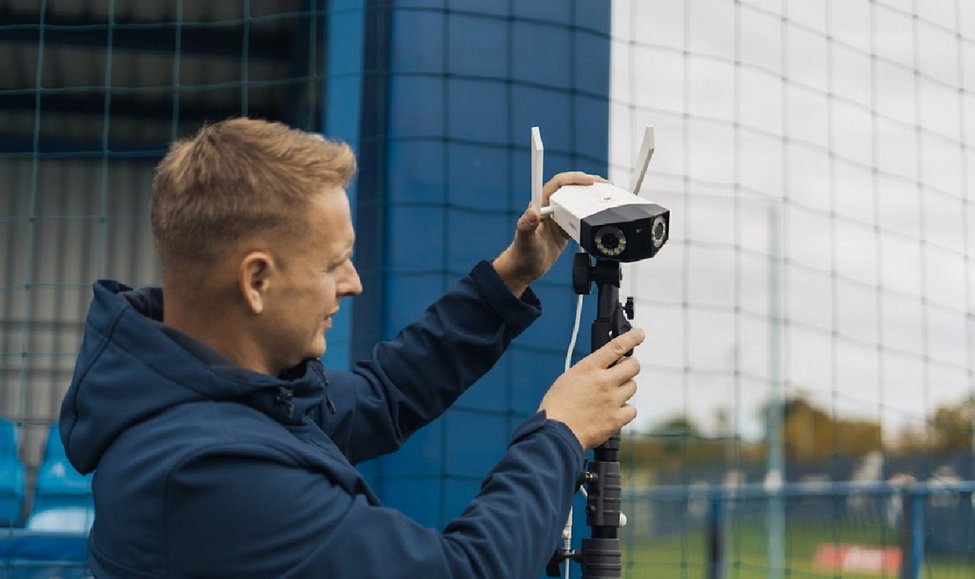
The Reolink Duo 3 WiFi is a dual-lens camera that covers the whole pitch on its own, and the only portable option for Once Sport Autocam that can live stream. This guide walks you through setting up your Reolink Duo 3 WiFi for use with Once Sport Autocam, from configuring the camera to recording and processing your first match.
This is what a match filmed with a Reolink Duo 3 WiFi and processed in Autocam looks like:
Button and menu names are written as they appear in the apps, in English.
1. First setup (on a computer)
Complete the initial setup on a Windows or Mac computer. Once that's done, you can use the Reolink mobile app to manage the camera.
- Start by connecting the camera to your router with an Ethernet cable. You'll need this connection for the initial setup.
- Install the Reolink Client on your computer from reolink.com/software-and-manual.
- Switch on the camera. It should then appear in the Reolink Client.
- Select your camera, give it a name and set a password. Keep this password handy, as you'll also need it to connect the camera to Once Sport Autocam.
2. Camera settings
Before recording your first match, adjust the following settings to prepare the camera for use with Once Sport Autocam. You'll find them all in the Reolink Client, in the camera's settings. Keep the camera and the computer on the same network, and click Save after each change.
Picture
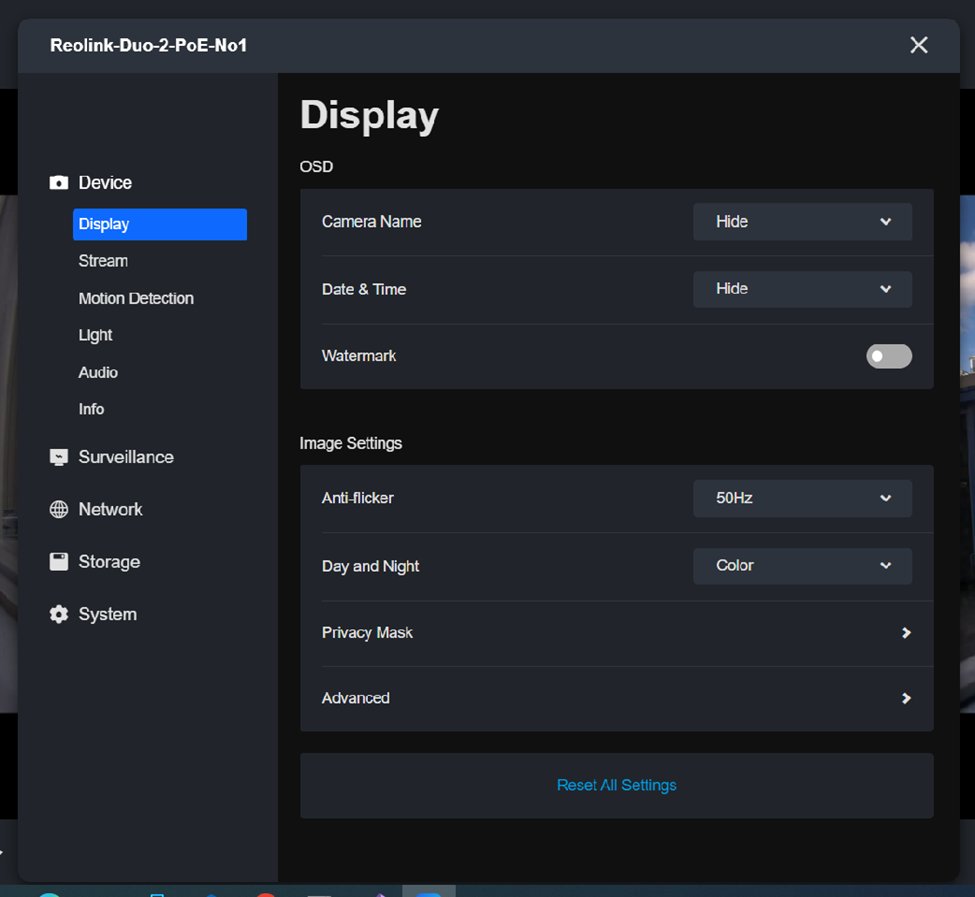
- In Settings → Device → Display, set Anti-Flicker to match the mains frequency in your country (50 or 60 Hz).
- Use Image Stitching, under Advanced, to align the images from the two lenses. Make this adjustment once the camera is positioned at the pitch, as the alignment depends on its distance from the field.
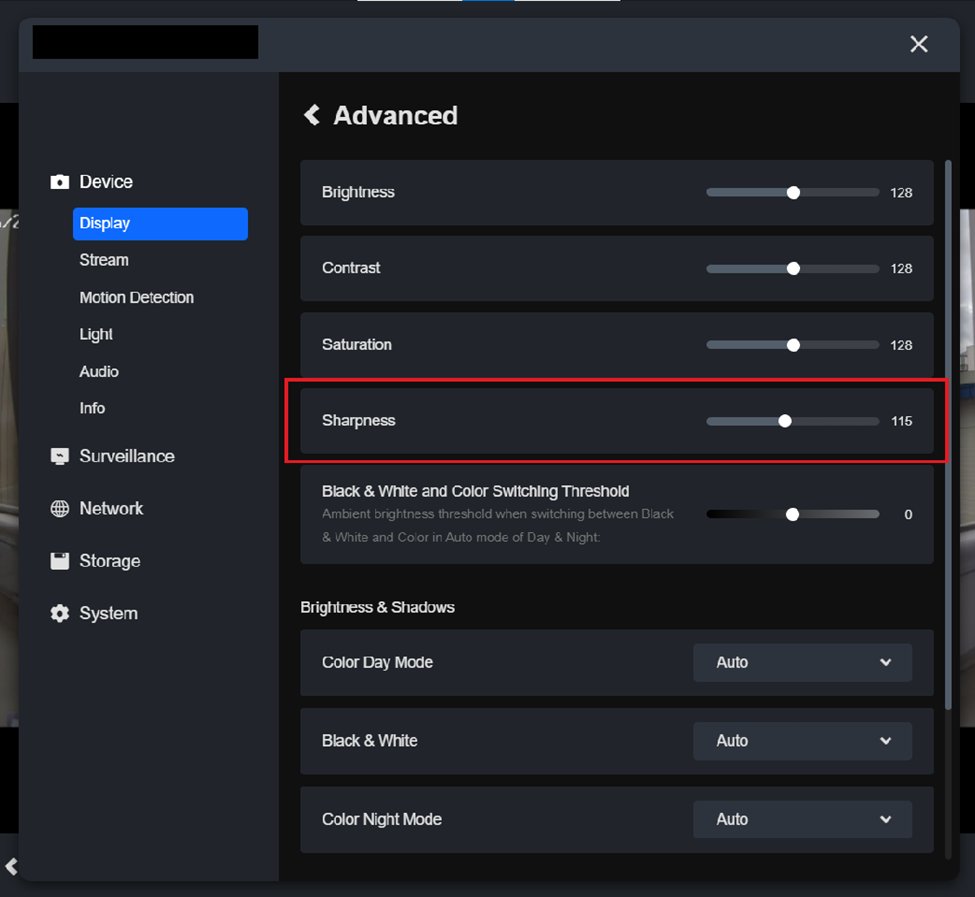
- In Settings → Device → Display → Advanced, lower Sharpness until the picture is clear but not oversharpened, to around 114. Too much sharpening makes tracking less accurate.
Connect the camera to Once Sport Autocam
- The camera and the computer need to be on the same network. This can be a normal WiFi network or your phone's hotspot, in which case both connect to the hotspot.
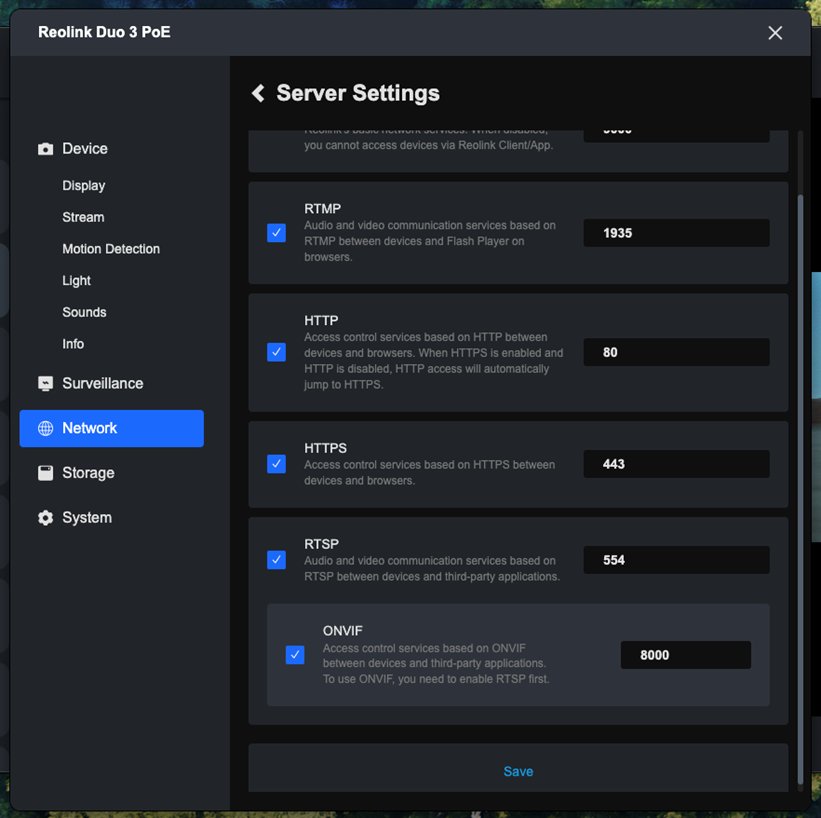
- In Settings → Network → Advanced → Server Settings, turn on all protocols (HTTP, HTTPS, RTSP, ONVIF) and click Save.
Stream
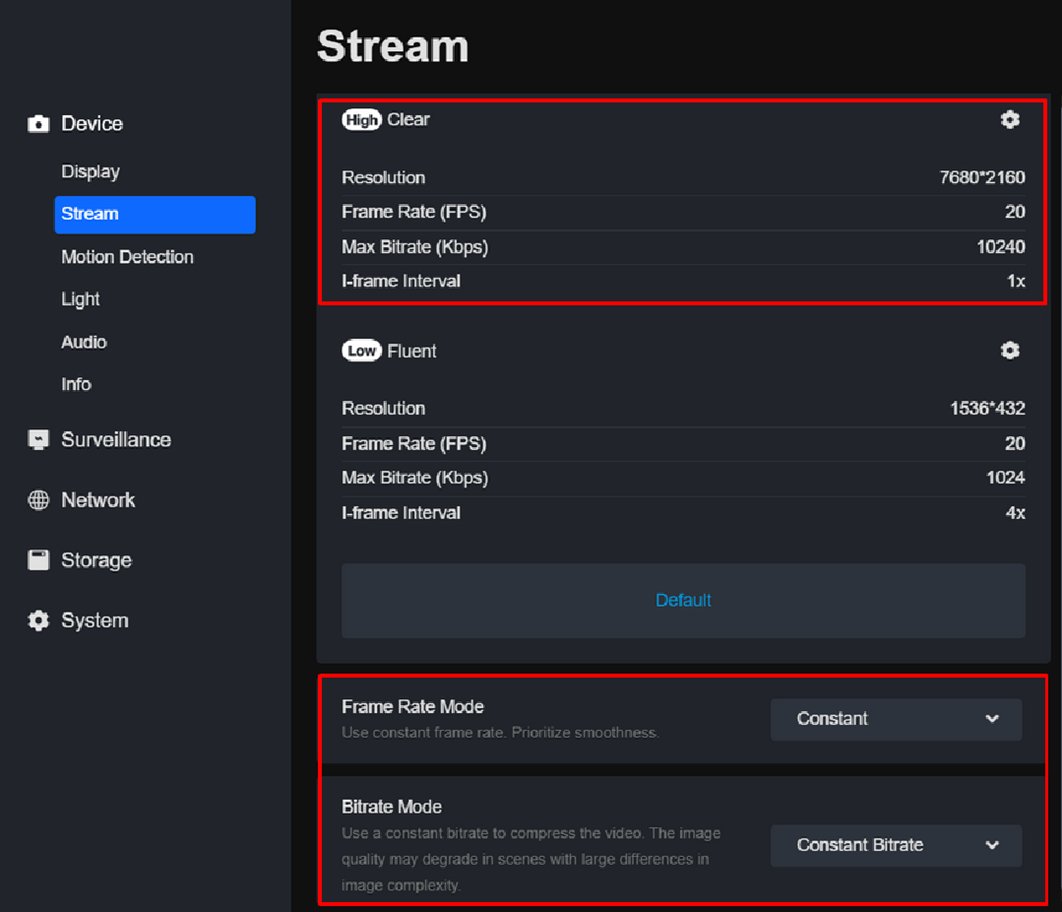
- In Settings → Device → Stream, set Frame Rate Mode to Constant and Bitrate Mode to Constant Bitrate.
- Set the I-frame interval to 1x, then set the resolution, frame rate and maximum bitrate to the highest values your model offers.
Audio and time
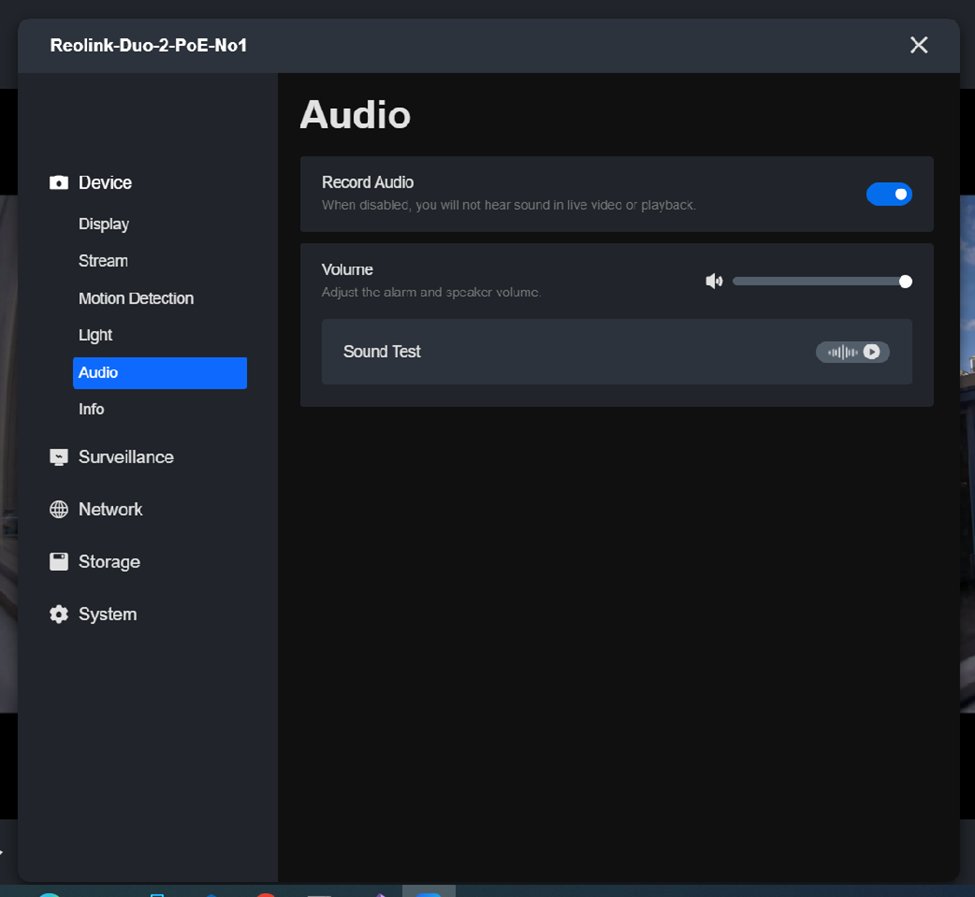
- In Settings → Device → Audio, switch Record Audio on so the recording includes sound.
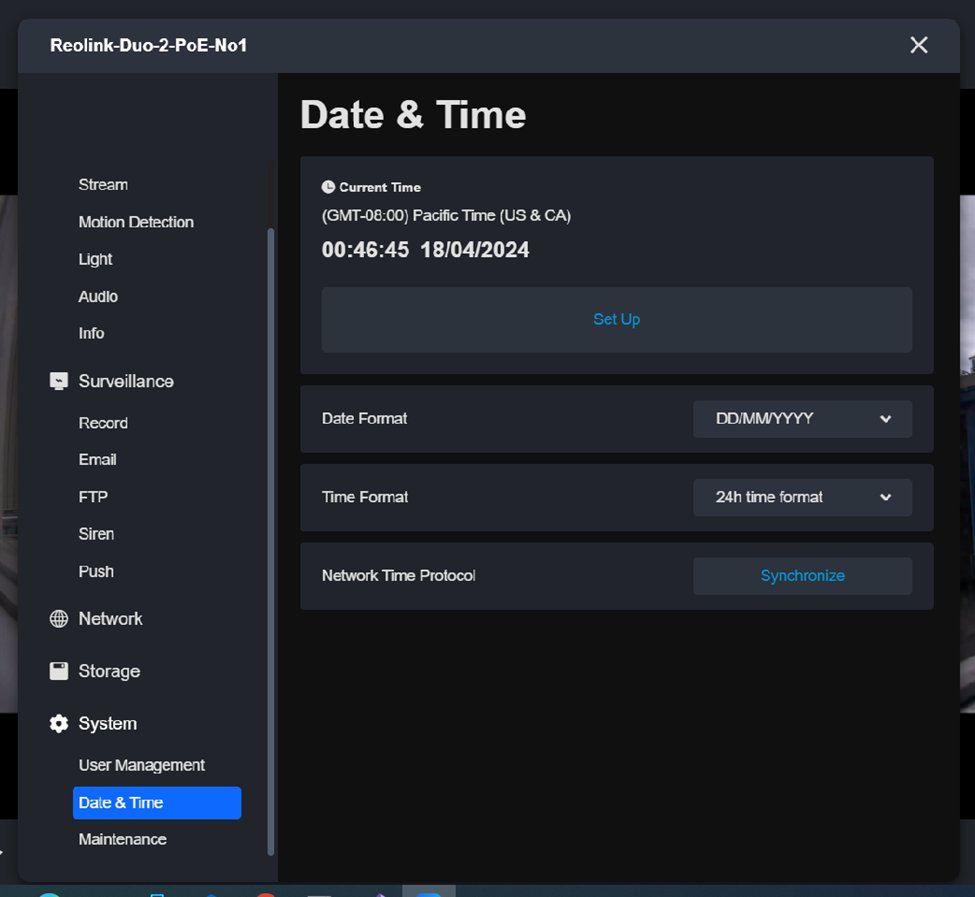
- In Settings → System → Date & Time, click Synchronize and check that the time zone is correct.
3. Recording
You only need the Reolink Client for the initial setup. After that, you can record and get your footage directly in Autocam. If recording or downloading doesn't work in Autocam, use the Reolink apps instead. The sections below explain how to record through Autocam or set a recording schedule in the Reolink apps.
In Autocam
Open Autocam, go to the Source step and pick Camera.
- Your camera appears under Cameras on your network. Click Sign in, enter the camera's Username and Password, and click Connect.
- Once the camera is connected, go to Recordings and click Start SD recording. The camera will record to its SD card until you click Stop SD recording.
- You can even start recording at home, unplug the camera, take it to the pitch and plug it back in. The camera will carry on recording.
- Click Preview to open the live view and check that the camera captures the whole pitch.
- To get your recordings, set From and To, click Search videos and select the clips. Click Import as source to use them directly as the input for processing without downloading them, or click Download selected to save them to a folder on your computer.
- Click Use live stream to use the camera's live picture as the input and process the match in real time.
Note: on the newest Reolink models, downloading and importing recordings in Autocam may not work yet. We are working with Reolink on a fix. Until then, download the recordings in the Reolink Client (section 7) and pick File in Source.
Scheduled recording in the Reolink desktop app
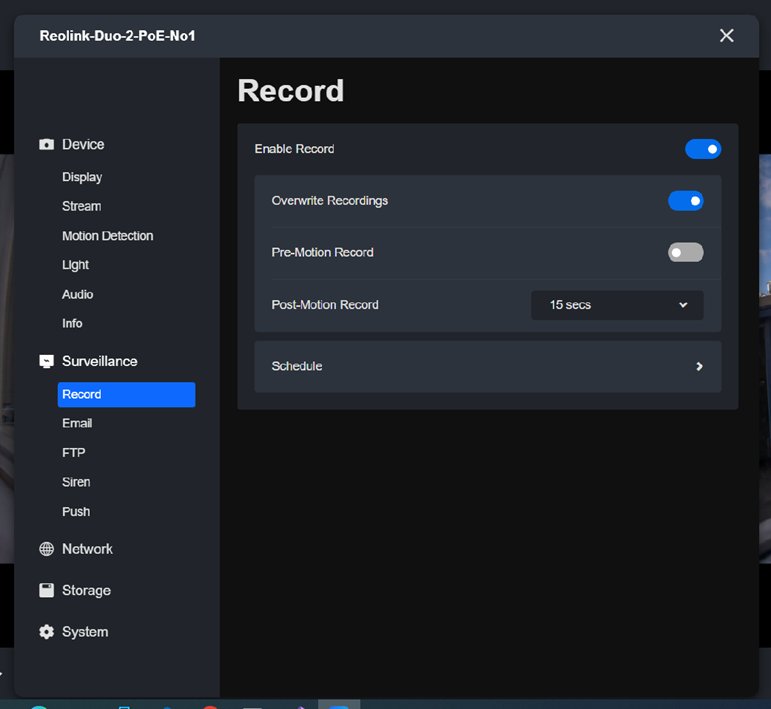
- Go to Settings → Surveillance → Record and click Schedule. On the Alarm tab, turn off all alarm options.
- On the Timer tab, click Disable All first, then select the times you want to record and click Save.
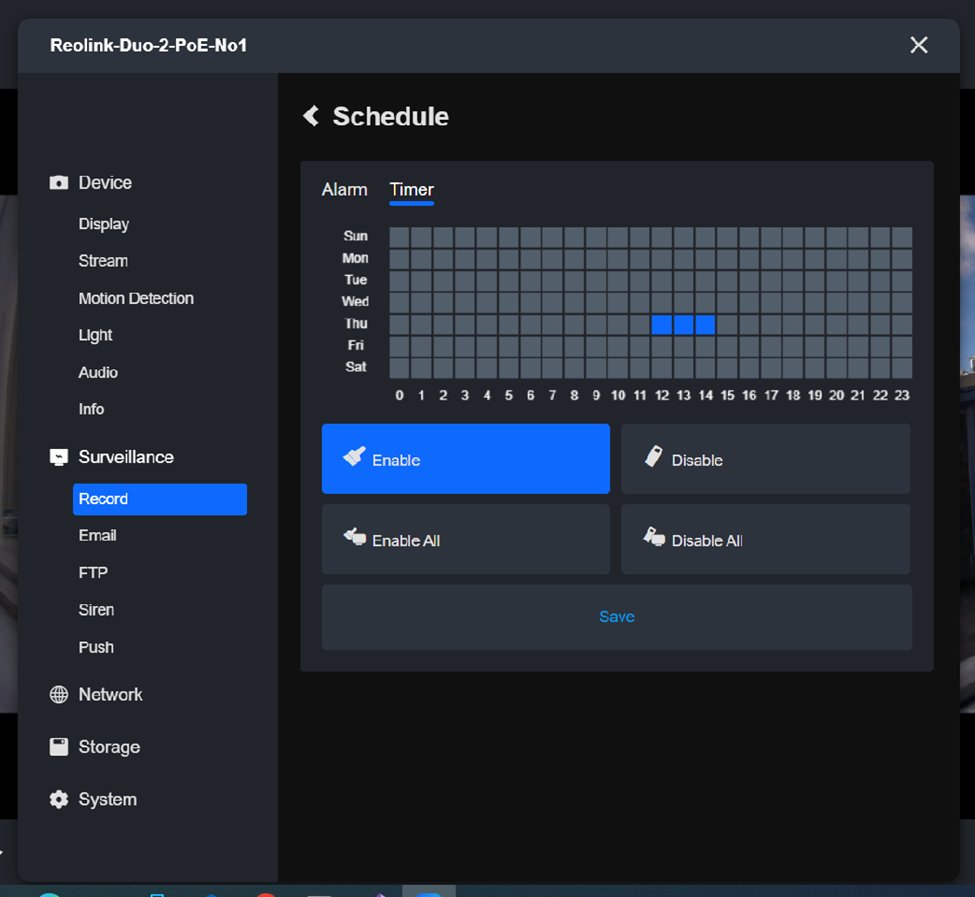
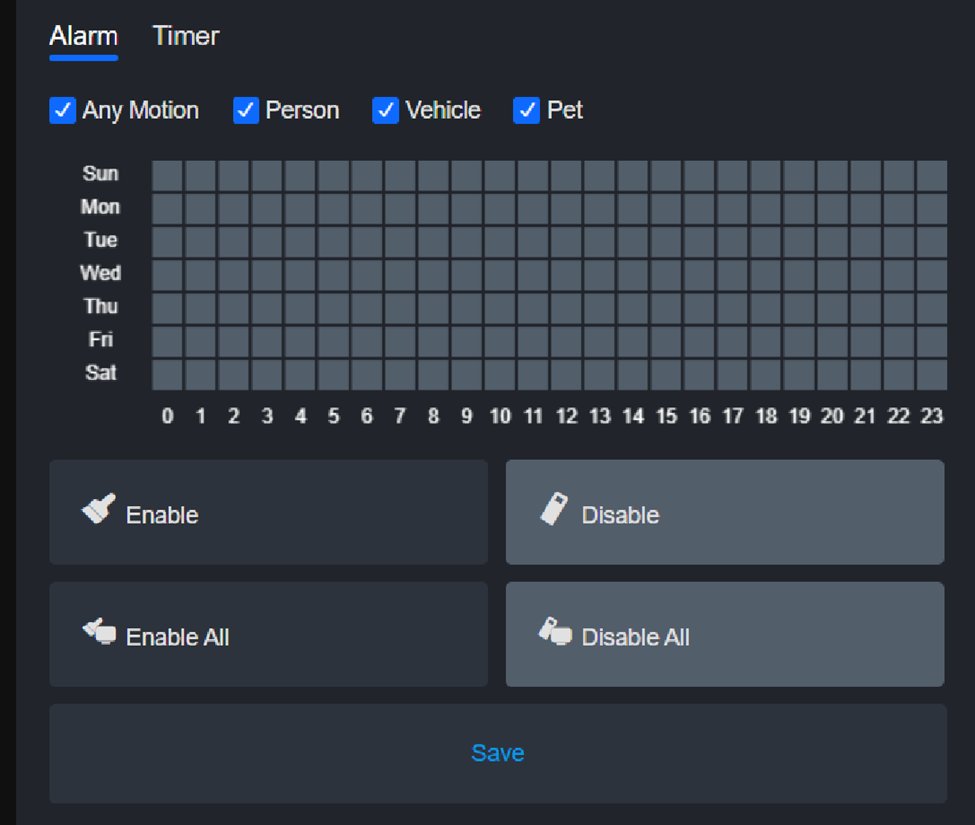
If match times change from week to week, update the schedule before each match.
Scheduled recording in the Reolink mobile app
Once you've completed the initial setup on your computer, add the camera to the Reolink mobile app by following section 4. The phone and the camera must be on the same WiFi network or phone hotspot.
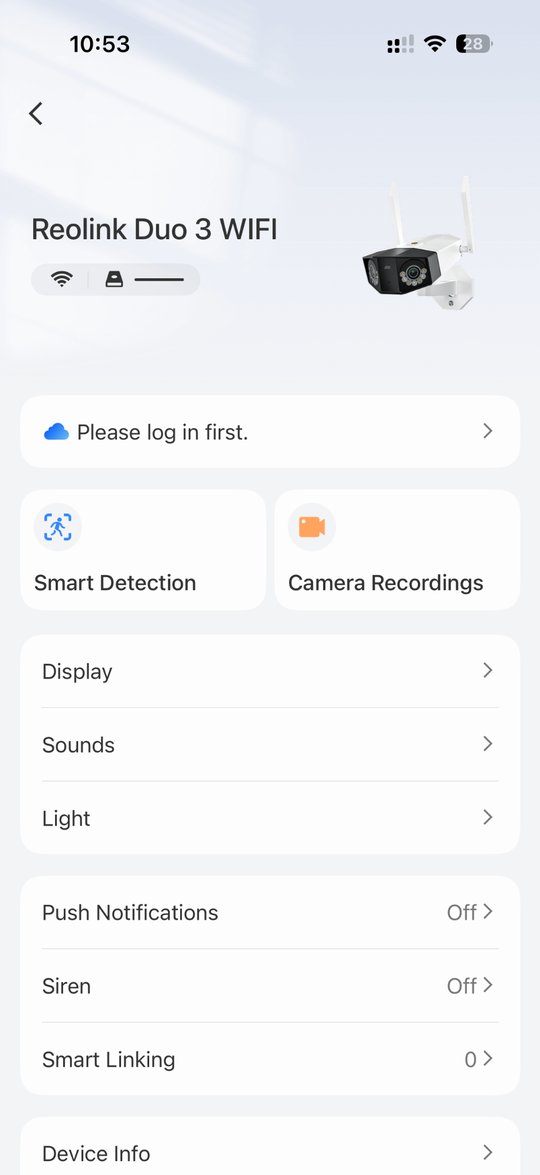
- Open the Reolink app and select your camera. Check the camera angle in the live view.
- Tap the settings icon on the camera card or in the live view, then Camera Recordings.
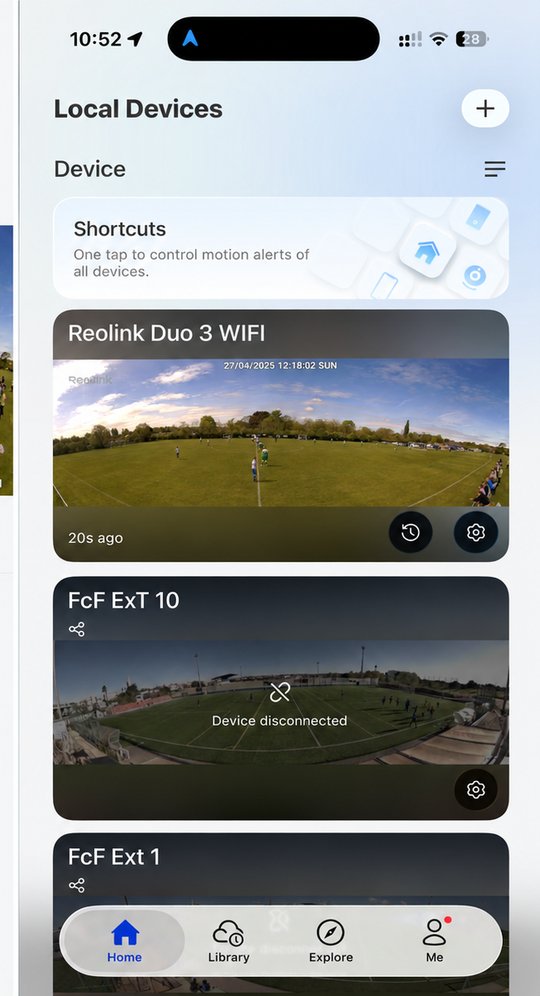
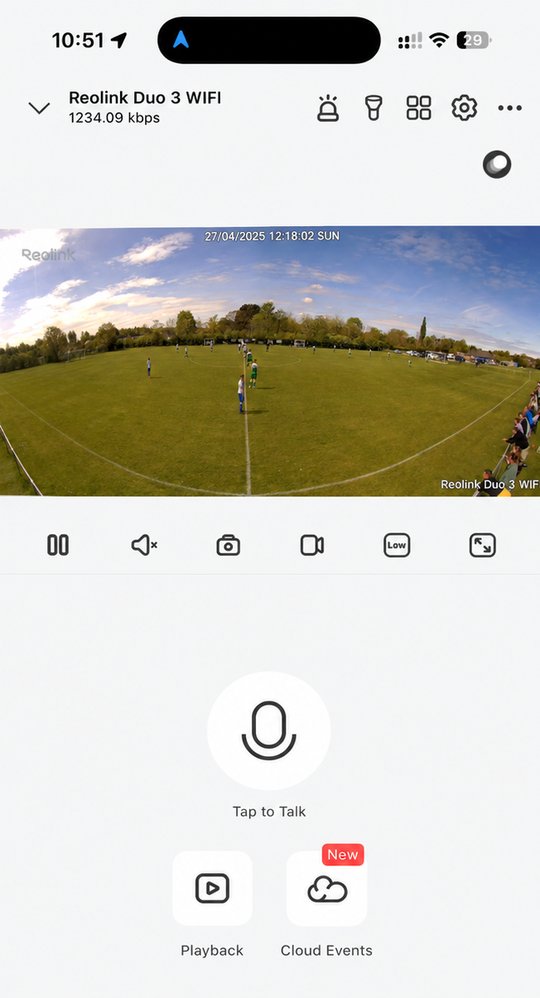
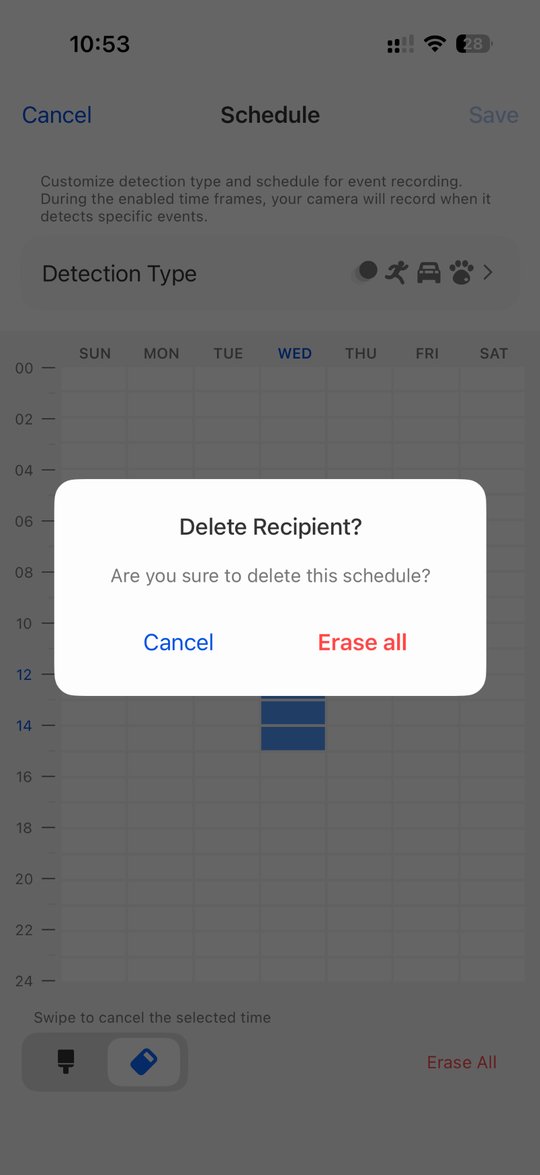
- Open Motion Recording Schedule, select the eraser, tap Erase All and confirm with Erase all, then tap Save. Motion Recording Schedule must show Off; keep Camera Recording switched on.
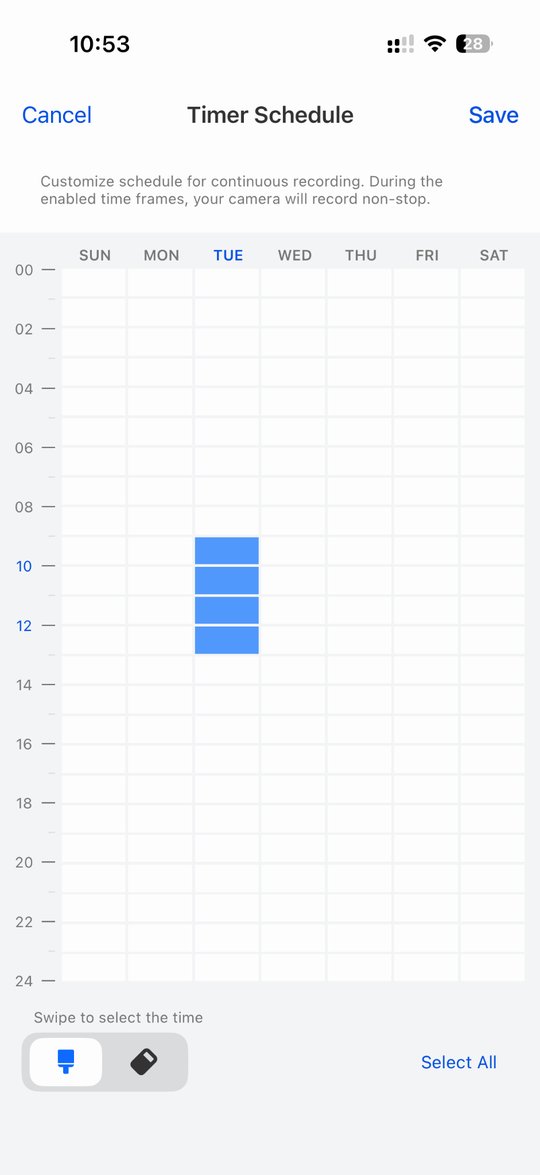
- Open Continuous Recording Schedule, use the brush to swipe across the days and times you want to record, and tap Save. The camera records continuously in the selected periods.
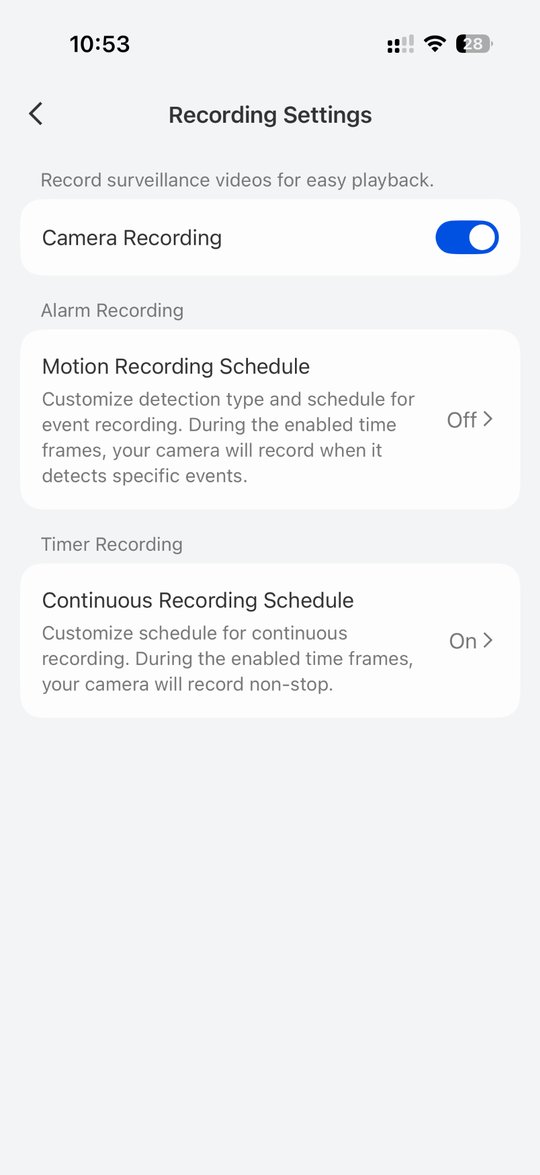
- Check the final settings: Camera Recording On, Motion Recording Schedule Off, Continuous Recording Schedule On. Update the schedule before each match if the times change.
4. No WiFi at the pitch: use your phone's hotspot
- Turn on the hotspot on your phone and give it a unique name.
- In the Reolink Client, open the camera's network settings and select your phone's hotspot.
- Connect your laptop to the same hotspot. The camera and the computer are then on the same network, even without internet.
- Install the Reolink app on your phone and tap +. Scan the camera's QR code, or tap Manual Input > UID, enter the UID and tap Next. Then enter the camera's password (the default username is admin).
Live view, settings and recording now all work locally, from your phone or computer, without internet.
5. Mounting the camera at the pitch
Once you've configured the camera and chosen your recording method, you're ready to set it up at the pitch.
- Mount the camera on the tripod and place the tripod on level, stable ground.
- The Reolink Duo 3 WiFi has no USB power input. It runs on 12V DC through a round barrel plug (5.5 × 2.1 mm on most units, so check yours). Make sure your power bank can supply the required power and has a compatible connector. Before buying one, read our power bank guide or contact us so we can check whether it suits your setup.
- Extend the tripod to the height you want, locking each section for stability.
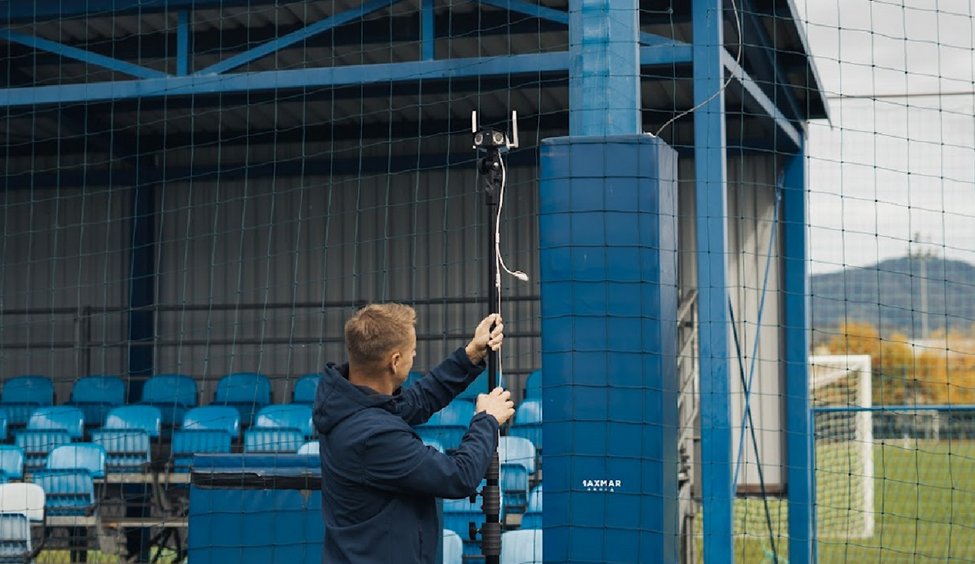
- Open the Reolink mobile app to check the picture and the camera angle.
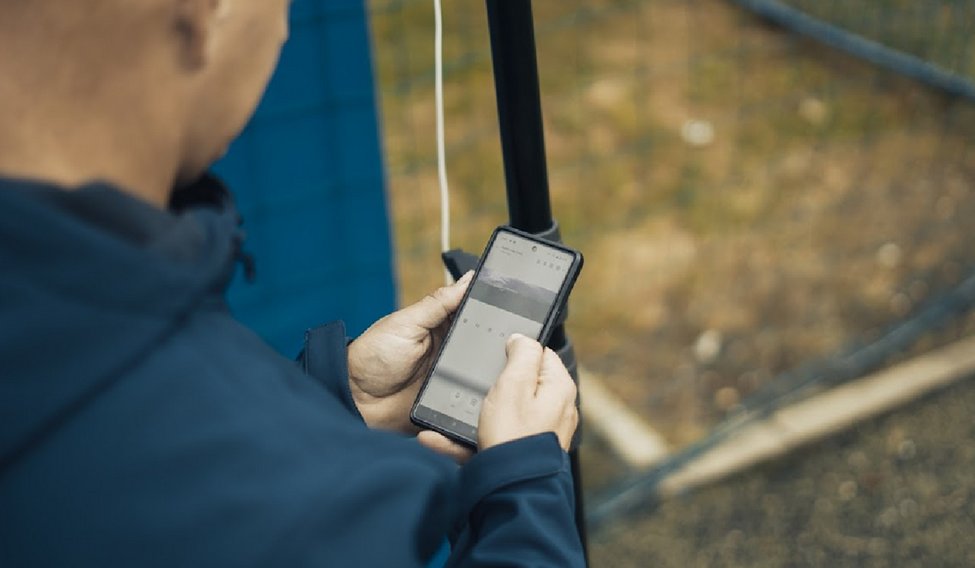
6. Live streaming and live analysis
To use live streaming or live analysis, connect the camera and your computer to the same WiFi network or phone hotspot.
- To live stream with Autocam, go to Source → Camera and click Use live stream. In the Output step, choose Live stream and enter the Service URL and the Stream key - optional of your platform, for example YouTube.
- For live analysis in Once Sport Analyser, you need the camera's RTSP address. For a Reolink camera, it is
rtsp://username:password@camera-IP:554/Preview_01_main, and Autocam shows the camera's IP address next to it under Cameras on your network. In the Analyser, start a live analysis, choose Live stream link as the video source and paste the address. How live analysis works.
You can then tag, draw and analyse in real time during the match, and, if you like, restream your live analysis to platforms such as YouTube or Twitch over RTMP.
7. Downloading recordings in the Reolink desktop app
If you can't download your recordings in Autocam (section 3), download them in the Reolink Client on your computer.
- Open the Reolink Client and connect to your camera.
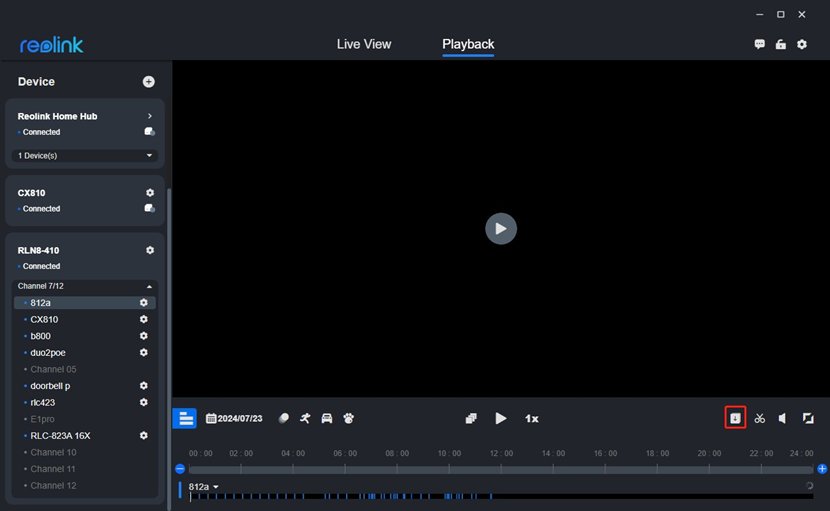
- Click the Playback tab (at the top, next to Live View), select the date of the recording and click the Download icon.
- Set the start and end Time of your session and the Type of recording, and set Stream to Clear for the highest quality. Tick Choose All or select the clips one by one.
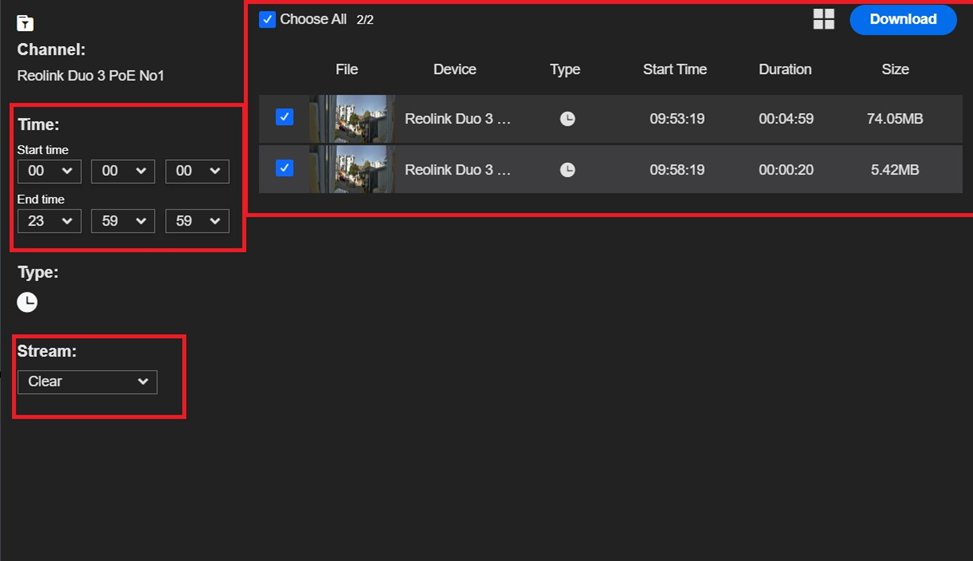
- Click Download and wait for the transfer to finish. The files are saved in your Reolink download folder.
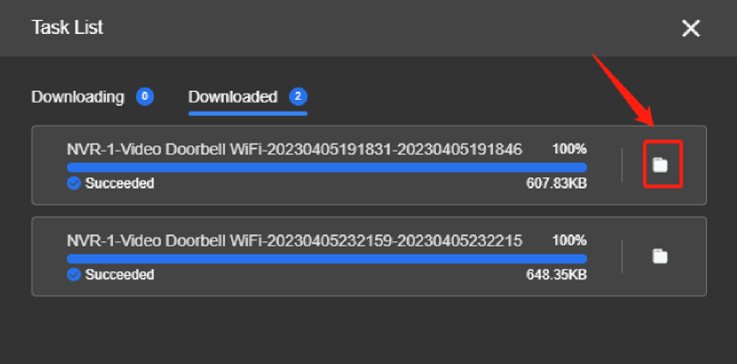
Then, in Autocam, choose File in the Source step and add the files. If you add several files, Autocam joins them into one video.
8. Processing the match in Autocam
With your recording ready, you can now process it in Once Sport Autocam. Follow the five steps below to turn the panoramic footage into a video that follows the action.
Use Next and Back to move between the steps. The video guide shows each one:
- In the Setup step, choose Single camera under Camera rig, because the Duo 3 delivers one panoramic picture. Then choose the Sport. Watch this step
- In the Source step, choose File for recordings on your computer, Camera to import recordings from the camera or use its live stream (section 3), or Stream for an RTSP address. Watch this step
- In the Field marking step, Autocam usually places the 10 points by itself (Auto mark). Check the corners and drag any point that sits off the line. If you mark the points by hand, How to mark shows the order. Watch this step
- In the Framing step, choose a preset or set Lowest zoom and Highest zoom yourself. Under Camera orientation, keep Correct for camera tilt on when you film from the side, in line with the centre of the field, and turn it off when you film from behind the goal. Watch this step
- In the Output step, choose Save to file or Live stream, pick the Resolution, add a Logo overlay - optional if you like, and click Start processing. Watch this step
Autocam then shows the processing status and the time left. Video processing can be demanding on your computer. Close other applications to help Autocam run smoothly.
Need help with your setup?
If something in this guide doesn't match what you see, or your camera doesn't show up in Autocam, contact us and we'll help. Don't have Autocam yet? Get a quote for the setup that fits your club.